Issues related to AI Agents
dotnet dnx is not a valid command
The getting started for Claude, Codex, and Copilot CLI uses dotnet dnx, which requires the .NET 10 SDK or newer. On older SDKs, dotnet dnx reports a "command not found" error.
If you want to use the App MCP with an older SDK, install the Dev Server as a global tool and replace dotnet dnx -y uno.devserver with uno-devserver in the commands and config files:
dotnet tool install -g uno.devserver
The App MCP does not appear in Visual Studio
Open the
.vs/mcp.jsonfile in Visual Studio. It is located in your solution's root directory.Verify that the Uno MCP server entry is present:
"uno": {
  "url": "https://mcp.platform.uno/v1"
}
If the entry is missing, add it to the
.vs/mcp.jsonfile and restart Visual Studio.If the entry exists but the server shows as disconnected, click on "Reconnect" in the file editor:
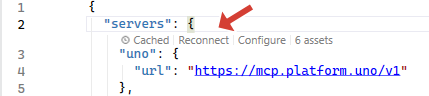
The Uno App MCP should now appear in the list of MCPs in Visual Studio.
The App MCP turns red in Visual Studio 2022/2026
In Visual Studio, the App MCP might turn red on some occasions. To fix this issue, click on the three dots on the right and select Reload.
The uno-app MCP failed to start
The Uno Platform App MCP may fail to start in Claude/Codex/Copilot CLI when it is started in a folder that does not contain an Uno Platform project.
To fix this issue, change directories to a folder that contains the .sln or .slnx file of your project.
Diagnosing Dev Server issues
Tip
When the App MCP fails to start, run uno-devserver disco from your solution directory.
Check that hostPath is resolved and that there are no errors. Pass --json for machine-readable output.
See Diagnostics (disco) for a full guide.