Uno Material Toolkit Library
UnoFeatures: Toolkit;Material (add to <UnoFeatures> in your .csproj)
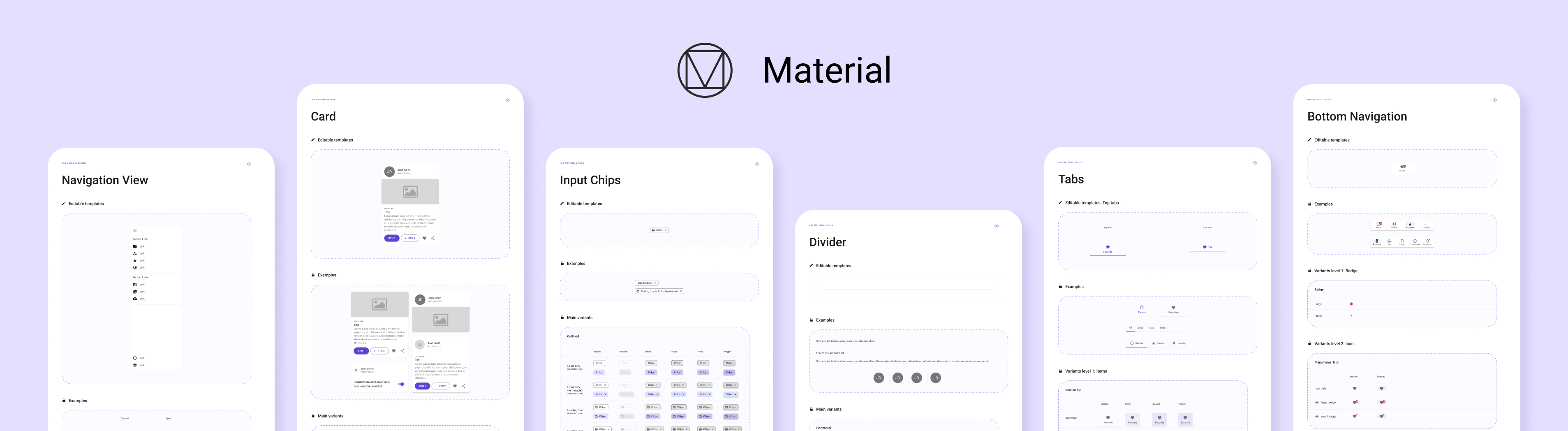
The Uno Material Toolkit provides a set of resources and styles based on Material Design guidelines for the controls included in the base Uno Toolkit library
Getting Started
Initialization of the Material Toolkit resources is handled by the specialized MaterialToolkitTheme ResourceDictionary.
MaterialToolkitTheme
Note
The MaterialToolkitTheme class also handles the required initialization of the Uno Material resources. Therefore, there is no need to initialize MaterialTheme within the App.xaml
Constructors
| Constructor | Description |
|---|---|
MaterialToolkitTheme() |
Initializes a new instance of the MaterialToolkitTheme resource dictionary. |
MaterialToolkitTheme(ResourceDictionary? colorOverride, ResourceDictionary? fontOverride) |
Initializes a new instance of the MaterialToolkitTheme resource dictionary and applies the given overrides |
Properties
MaterialToolkitTheme inherits its configuration from Uno Themes. Refer to Uno Material customization and the shared theme property reference.
Installation
Note
Make sure to setup your environment first by following our instructions.
Creating a new project with the Uno Material Toolkit
Follow the steps in the Getting Started with Visual Studio instructions to launch the Uno Platform Template Wizard.
Select
Materialunder theThemesection.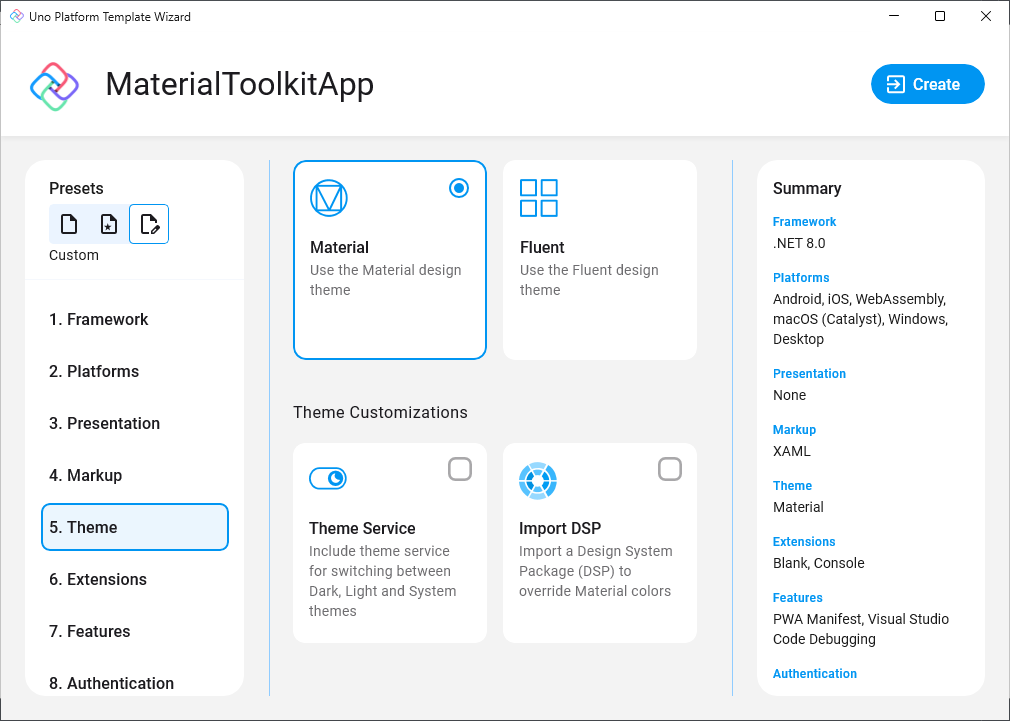
Select
Toolkitunder theFeaturessection.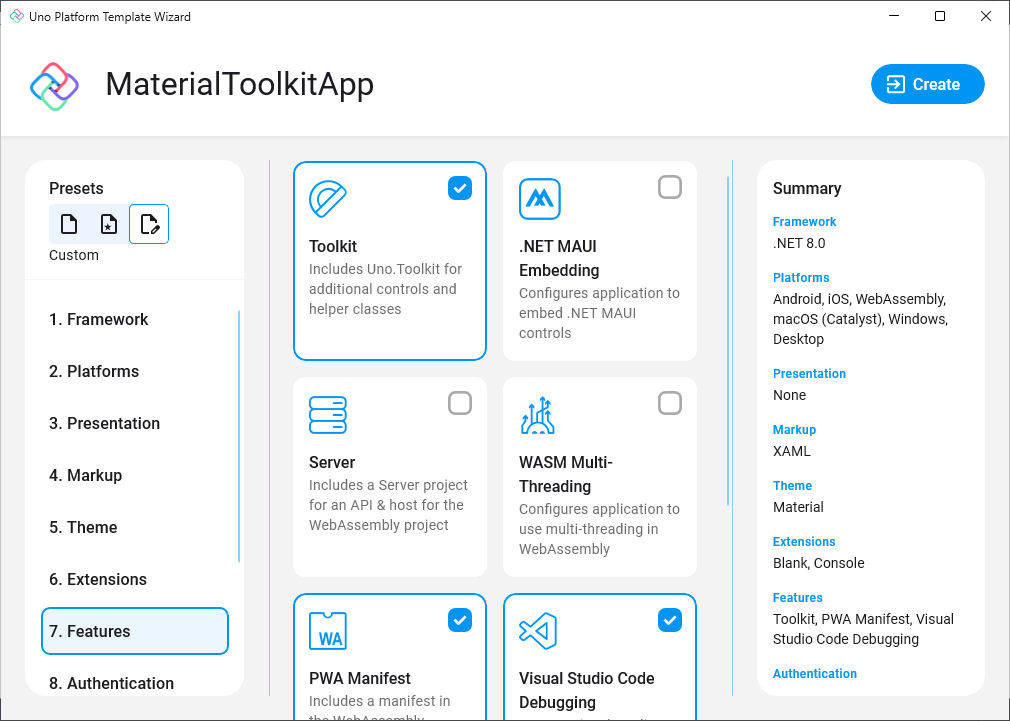
Installing Uno Material Toolkit in an existing project
Depending on the type of project template that the Uno Platform application was created with, follow the instructions below to install the Uno Material Toolkit.
- Single Project Template
- Multi-Head Project Template (Legacy)
- Shared Project (.shproj) Template (Legacy)
Edit your project file (
PROJECT_NAME.csproj) and addToolkitandMaterialto the list ofUnoFeatures:<UnoFeatures>Toolkit;Material</UnoFeatures>Initialize
MaterialToolkitThemein theApp.xaml:<Application.Resources> <ResourceDictionary> <ResourceDictionary.MergedDictionaries> <!-- Code omitted of brevity --> <MaterialToolkitTheme xmlns="using:Uno.Toolkit.UI.Material" /> </ResourceDictionary.MergedDictionaries> </ResourceDictionary> </Application.Resources>
Customization
Apply the properties shown in Uno Themes examples directly to MaterialToolkitTheme. It initializes the underlying theme and Toolkit resources, so do not add a separate MaterialTheme.
Customize Colors
Follow the Uno Material color override guide, using MaterialToolkitTheme as the theme dictionary.
Customize Fonts
Follow the Uno Themes typography guide and Uno Material font guide.
Toolkit control-specific aliases such as NavigationBarFontFamily and DividerSubHeaderFontFamily retain their own override keys; DefaultFontFamily does not regenerate these aliases. See NavigationBar styling and Divider styling.
Customize Spacing and Density
Follow the Uno Themes guides for spacing and density. Fixed Toolkit padding and margins remain independent of the generated spacing scale.
Seed Color Customization
Follow the Uno Themes seed color guide, using the Toolkit theme in its examples.
Using C# Markup
The Uno Material Toolkit library also has support for C# Markup through a Uno.Toolkit.WinUI.Material.Markup NuGet Package.
To get started with the Uno Material Toolkit in your C# Markup application, add the Uno.Toolkit.WinUI.Material.Markup NuGet package to your application project.
Then, add the following code to your App.xaml.cs:
using Uno.Toolkit.UI.Material.Markup;

this.Build(r => r.UseMaterialToolkit(
    //optional
    new Styles.ColorPaletteOverride(),
    //optional
    new Styles.MaterialFontsOverride()
));
Note
The Uno.Toolkit.WinUI.Material.Markup NuGet package includes the base Uno Toolkit Markup package as a dependency. Therefore, there is no need to add the Uno.Toolkit.WinUI.Markup package separately. Furthermore, the UseMaterialToolkit extension method also initializes the base Uno Toolkit library, so there is no need to call the UseToolkit extension method in your App.xaml.cs.